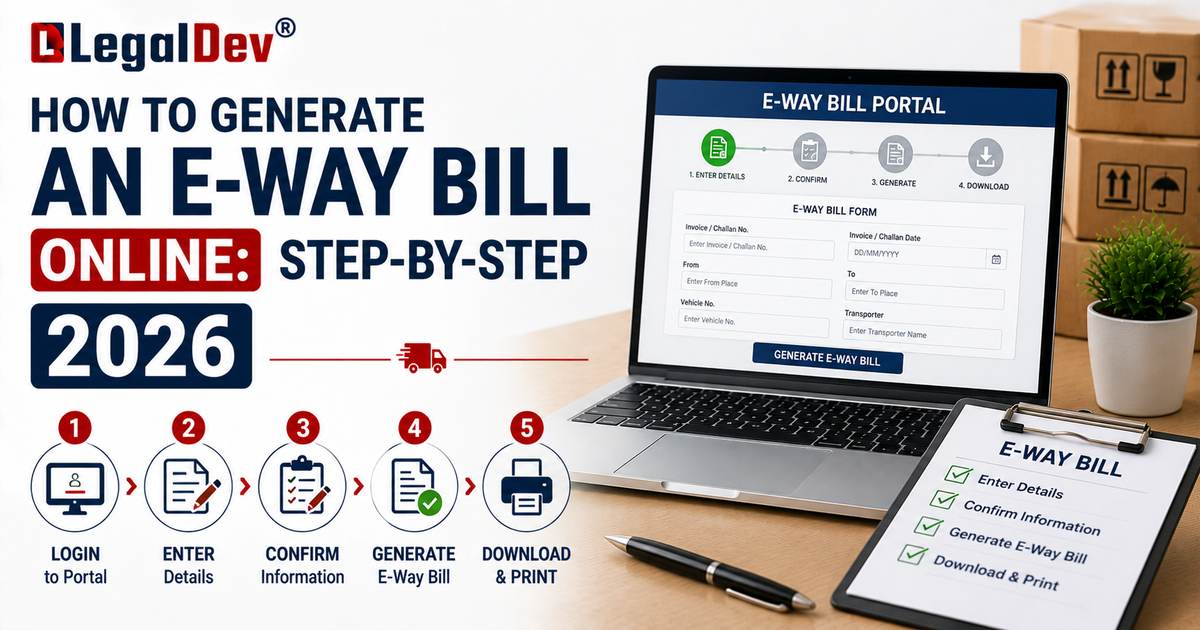
How to Generate an E-Way Bill Online: Step-by-Step Process
Generating an e-way bill takes about five minutes once you have the right documents ready. This guide walks through the exact steps on the official portal, plus the alternative methods available if you generate bills in bulk or from a remote location.
Before You Start: What You Need
-
Your GSTIN, and login credentials for the e-way bill portal (see our E-Way Bill Registration page if you haven't registered yet).
-
The invoice, bill of supply, or delivery challan for the shipment.
-
The recipient's GSTIN (or "URP" if they're unregistered).
-
HSN code and value of the goods being moved.
-
Transporter ID or vehicle number, depending on whether you're arranging your own transport or using a third party.
Step-by-Step: Generating an E-Way Bill on the Portal
Step 1: Log in to the portal Go to ewaybillgst.gov.in (or the backup portal, ewaybill2.gst.gov.in). Enter your User ID, password, and the captcha shown on screen, then complete the OTP-based two-factor authentication step.
Step 2: Select "Generate New" On the dashboard, click "Generate New" under the E-waybill option on the left-hand menu.
Step 3: Fill in Part A Enter the transaction type (outward or inward), the sub-type (supply, export, job work, sales return, and so on), the document type (tax invoice, bill of supply, or delivery challan), and its number and date. Then add:
-
The recipient's GSTIN and place of delivery.
-
Item details: product name, description, HSN code, quantity, unit, taxable value, and applicable tax rate.
Step 4: Fill in Part B (transporter details) Select the mode of transport (road, rail, air, or ship) and enter the approximate distance in kilometres; the portal often auto-calculates this using PIN codes, with a 10% margin allowed. Then provide either:
-
The transporter's name, ID, and transport document number and date, or
-
The vehicle number, in the format AB12AB1234, if you're arranging your own transport.
Step 5: Submit Click "Submit." The system validates your entries and flags any errors. Once everything checks out, it generates the e-way bill with a unique 12-digit E-Way Bill Number (EBN) and a QR code.
Step 6: Print and carry the document Print the EWB-01 form, or the detailed print version, and keep it with the vehicle during transit. The QR code lets any checking officer verify the details instantly.
Who Generates Part A and Part B
-
If you're arranging your own transport and already know the vehicle number, you fill both Part A and Part B yourself, and the e-way bill is ready to use immediately.
-
If you're using a third-party transporter and don't know the vehicle number yet, you fill Part A and assign it to the transporter's GSTIN or transporter ID. The transporter then logs in separately to complete Part B once the vehicle is confirmed.
-
Note that validity officially starts only once Part B is filled in, since that's when the actual transport details are locked in.
Other Ways to Generate an E-Way Bill
-
SMS mode: Useful for small businesses generating occasional bills. You register your mobile number on the portal, then send a formatted SMS to the relevant state helpline to generate, update, or cancel an e-way bill.
-
Android app: The official mobile app lets you generate and manage e-way bills on the move, which helps field staff and smaller operations.
-
API integration: Businesses generating a high volume of e-way bills can integrate their ERP or billing software directly with the portal through an API, removing manual entry.
-
Bulk generation: For multiple e-way bills at once, you can prepare a JSON file offline, upload it under "Generate Bulk" on the portal, and generate all the bills in one action.
-
Auto-generation via e-invoicing: For businesses under the e-invoicing mandate, e-way bill Part A details can be auto-populated when the e-invoice is generated, saving a step.
Common Mistakes to Avoid
-
Using an old invoice. You can't generate an e-way bill for an invoice dated more than 180 days before the generation date.
-
Wrong vehicle number format. The system expects a specific format (like AB12AB1234); double-check before submitting.
-
Duplicate e-way bills. The system now blocks a second e-way bill against the same invoice number and date, so verify one hasn't already been generated.
-
Skipping the distance check. Entering an inaccurate distance affects the validity period, which can lead to your bill expiring mid-transit.
-
Generating for a blocked GSTIN. If GSTR-3B hasn't been filed for two consecutive periods, generation gets blocked automatically until the returns are filed.
What Happens After Generation
Once generated, the e-way bill is visible to the supplier, recipient, and transporter, all of whom can view it by logging into the portal with their respective GSTIN. If details are wrong and the goods haven't started moving, the bill can typically be cancelled within 24 hours of generation.
Once goods are delivered, the supplier, recipient, transporter, or driver can use the new voluntary closure facility to mark the e-way bill as complete, either on the delivery date or the day after.
Frequently Asked Questions
Is there a fee to generate an e-way bill?
No. Generating an e-way bill on the official government portal is free. Third-party GST software with e-way bill integration may charge a subscription fee for convenience.
How long does it take to generate an e-way bill?
On the portal, it typically takes a few minutes if you have all the details ready. Bulk generation through a JSON upload can create multiple bills in seconds.
Can I generate an e-way bill after the goods have started moving?
No. It must be generated before the movement begins. Generating one after transit starts defeats the compliance purpose and can attract a penalty if checked en route.
What if I make a mistake after submitting?
You can cancel the e-way bill within 24 hours if the goods haven't moved, then generate a corrected one. If the goods are already in transit, some details, like the vehicle number, can be updated without cancellation.
Read Next
If you haven't registered on the portal yet, start with E-Way Bill Registration. Once your bill is generated, check E-Way Bill Validity to know exactly how long it stays valid for your shipment's distance.