GST Offline Tool: Download, Install & Use Guide 2026
The GST Offline Tool is a free Windows program from GSTN that lets you prepare GSTR-1 and IFF invoice data without being logged in to the GST Portal. You type invoices in, or import them from an Excel workbook or CSV files, generate a JSON file, and upload that file to the portal. That is where the tool's job ends. You still preview the return and file it on the portal with DSC or EVC.
Key takeaways
-
Download the tool only from the GST Portal (Downloads > Offline Tools > Returns Offline Tool). The page listed version V3.2.4 when this guide was checked.
-
It runs on Windows only. GSTN says it does not work on Linux, Mac or mobile.
-
Four ways to fill data: manual entry, full Excel workbook import, copy and paste from Excel, or section-wise CSV import.
-
The JSON file must stay under 5 MB. Larger data means several files.
-
You cannot sign or submit a return inside the tool. Filing always happens on the portal.
-
If the portal rejects some invoices, you download an error file, open it in the tool, fix the rows, and upload a fresh JSON.
What Is GST Offline Tool?
The GST Offline Tool, officially the Returns Offline Tool, is a desktop application published on the GST Portal for preparing FORM GSTR-1 and the Invoice Furnishing Facility (IFF) offline. GSTN describes it as a free, Excel-based tool that works without internet connectivity while you prepare data. You need the internet only when you upload the finished JSON file.
GSTN built it for businesses that issue many invoices in a tax period. Uploading them one by one on the portal is slow, so the tool takes them in bulk. Its screens look like the online GSTR-1 form, and GSTN states that the functions are identical.
People search for it under several names: GST Offline Utility, GSTR-1 Offline Tool, GST Returns Offline Tool, GST Portal Offline Tool. They all point to the same GSTN download when the return in question is GSTR-1 or IFF. Other returns, such as GSTR-3B or GSTR-4, have their own separate utilities (listed in the download section below).
GSTN's own guidance on GSTR-1 preparation lists three routes: enter data online on the portal, use the Returns Offline Tool, or use a third-party application (ASP/GSP). The tool is one of the three, and it suits you best when your invoice data already lives in a spreadsheet or comes out of accounting software.
Who Can Use the GST Offline Tool?
Any registered taxpayer who files GSTR-1 or uses IFF can use it. It is most useful for three kinds of people:
-
Businesses with high invoice volume. A trader or manufacturer with hundreds of invoices a month gains the most.
-
Accountants and bookkeepers who export sales data from Tally, Zoho, Busy or an Excel register and want to skip re-keying it.
-
GST practitioners and CA offices handling several clients. One installation can prepare files for many GSTINs. Each JSON carries the supplier GSTIN, so a file made for client X is refused if someone uploads it under client Y's login.
Who gains little? A business with ten or fifteen invoices a month. Typing those directly into the online form takes less time than installing, filling a template and uploading a file. That is my judgement, not a GSTN rule, but it holds up in practice: the tool pays off through volume, not through principle.
Handwritten invoices are no barrier. GSTN's FAQ confirms you can enter their details in the Excel template or straight into the tool.
How to Download GST Offline Tool?
Download it from the official GST Portal, and only from there. Third-party mirrors of "GST Offline Tool Download 2026" are a bad idea for a tool that will touch your invoice and GSTIN data.
-
Open gst.gov.in (no login needed for the download).
-
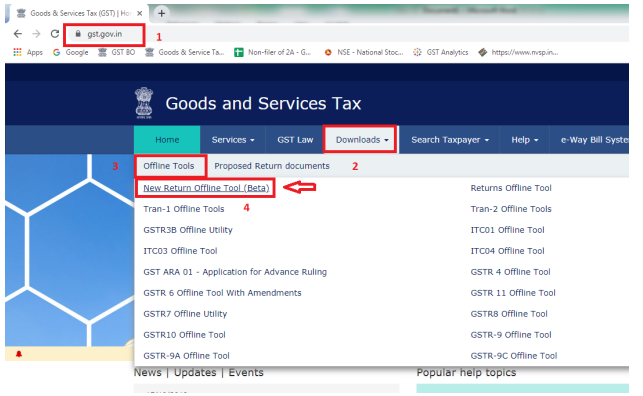
Go to Downloads > Offline Tools > Returns Offline Tool. The direct page is gst.gov.in/download/returns.
-
Click Download. A confirmation message appears; click Proceed. GSTN says the file usually takes two to three minutes, depending on your connection.
-
Save
gst_offline_tool.zip somewhere you can find it, then extract it.
Check the file is not corrupted. The download page publishes a SHA256 value for the zip. In Windows PowerShell, run Get-FileHash C:\path\to\gst_offline_tool.zip -Algorithm SHA256 and compare the result with the value on the page. If they match exactly, the file is intact. If not, download again. It takes thirty seconds and most guides skip it.
What is inside the zip:
|
File or folder |
What it is for |
|
GST Offline Tool (application) |
The installer for the tool |
|
Section_wise_CSV_files |
One CSV template per GSTR-1 table |
|
GSTR-1 (and GSTR-2) Excel workbook template |
Multi-section workbook for importing everything in one go |
|
User Manual |
GSTN's step-by-step guide |
|
Readme |
Prerequisites and installation notes |
The CSV files ship with sample rows. Delete them before entering real data.
Other GSTN offline utilities on the same Downloads page. If you landed here for a different return, the Offline Utilities page lists these:
|
Utility |
Use |
|
Returns Offline Utility |
GSTR-1 and IFF (this guide) |
|
GSTR-3B Offline Utility |
Excel-based, prepares GSTR-3B |
|
GSTR-4 Offline Tool |
Composition taxpayers |
|
GSTR-7, GSTR-9C, ITC-01, ITC-04 |
Respective returns and forms |
|
TRAN-1, TRAN-2 |
Transitional credit forms |
|
IMS Offline Tool |
Accept, reject or hold invoices in the Invoice Management System |
How to Install GST Offline Tool on Your Computer?
Double-click the GST Offline Tool setup file from the extracted folder and follow the prompts. It takes two to three minutes.
-
Read the Readme first. It lists prerequisites.
-
Double-click GST Offline Tool and click Yes to allow the install.
-
Click Browse and choose an install location, then Next. The installer shows the disk space it needs; if your drive is short, the install will fail with an error.
-
Tick Create a desktop icon, click Next, then Install.
-
On the last screen keep both checkboxes ticked and click Finish. A "GST Offline Tool" icon appears on the desktop.
Two rules from GSTN's manual that save real trouble:
-
Do not install into the same folder where you saved the zip.
-
If you uninstall and reinstall, use the same location. If you pick a different one, restart Windows afterwards. Otherwise the tool keeps pointing at the old path and refuses to open. Also remember that uninstalling deletes the data saved inside the old version.
System requirements (from the GST Portal download page):
|
Item |
Requirement |
|
Operating system |
Windows 7 or above. Not Linux, not Mac |
|
Browser |
Internet Explorer 10+, Google Chrome 49+ or Firefox 45+ |
|
Spreadsheet |
Microsoft Excel 2010 or above |
|
Older Excel |
Per the portal page, on lower versions the tool opens in your default browser |
The user manual mentions Excel 2007 in one place; the portal page says 2010. Go by the portal page, since it is the live one.
How to Use GST Offline Tool Step by Step?
Open the tool from the desktop icon. The home page has four tiles:
-
Upload new invoice/other data for return: start a fresh GSTR-1 or IFF (the New button).
-
Open downloaded return file from GST Portal: pull an existing return into the tool to modify, add or delete invoices.
-
Open downloaded error file from GST Portal: correct rows the portal rejected.
-
My Masters: store your product (HSN) list and supplier or recipient list so you can reuse them.
The overall flow is always the same: fill data, validate, generate JSON, upload on the portal, fix any errors.
Enter or Import GST Data
Click New and fill the setup screen:
-
In GST Statement/Returns, choose FORM GSTR-1/IFF.
-
Enter your own GSTIN as supplier.
-
Pick the financial year and tax period.
-
Say Yes or No to SEZ taxpayer and Quarterly taxpayer.
-
Click Proceed, then Yes.
Optional but worth doing once: open My Masters and add your HSN codes and frequent buyers. You choose the HSN, the tool fills the description, and you add a unique product name, IGST rate and UQC.
You then have four ways to bring invoices in:
|
Option |
Best when |
Watch out for |
|
Manual entry |
A handful of invoices |
One invoice at a time; items at the same rate go in as one line |
|
Import full Excel workbook |
Data for several tables in one file |
Use GSTN's own template; do not rename sheets or headers |
|
Copy and paste from Excel |
You want to load one section at a time |
Copy from cell A1 and include the header rows |
|
Import CSV |
Accounting software exports CSV |
Pick the matching section before importing |
Import Excel or CSV Data
For the Excel route, fill only the worksheets that apply to you and leave the rest blank; the tool generates JSON only for sections that have data. Then click Import Files > Import Excel, choose the workbook, and confirm. You can import all sections in one go or one section at a time.
For CSV, open the correct CSV from the Section_wise_CSV_files folder, replace the sample rows with your data, then use Import Files, select the section from the drop-down, and click Import CSV. If your accounting software produces CSV or Excel in the same structure as GSTN's templates, you can import it directly; otherwise map it into the template first.
For copy and paste, select from the top-left cell of the GSTN template sheet, header included, press Ctrl+C, open Import Files > Copy Excel, and press Ctrl+V in the box. GSTN says the paste fails with "invalid input" if the header rows are missing.
Some behaviours that catch people out:
-
Multiple line items on one invoice: repeat the common invoice details (recipient GSTIN, invoice number, date, place of supply) on every row, and keep those rows together. If they are scattered, the tool maps line items to the wrong invoice.
-
Importing the same invoice again overwrites the earlier entry.
-
B2CS is different. Re-importing the same place of supply and rate overwrites; a new rate for the same place of supply is added. For other summary sections (AT, ATADJ, HSN, exempted supplies), a new upload replaces everything uploaded earlier in that section.
-
More data than one lot can hold: import in several lots and name the workbooks by month so you can tell them apart.
Validate the Data
The tool validates as you save or import. Fields with errors turn red, and mandatory fields carry an asterisk. The Help Instruction sheet inside the Excel workbook lists which fields are mandatory.
GSTN's manual names these frequent reasons for rejecting a row at import:
|
Problem |
Rule |
|
Invoice number |
Up to 16 characters, alphanumeric; only "/" and "-" allowed as special characters; no duplicates |
|
Recipient GSTIN |
15 characters, alphanumeric, no blanks or special characters |
|
Decimals |
Two digits after the decimal point |
|
Negative values |
Not accepted for value, taxable value or tax amounts |
|
Dates |
Must be in the format the template uses; future dates are rejected |
|
Recipient GSTIN equals your own |
Error: receiver GSTIN needs to differ from supplier GSTIN |
|
Wrong section |
Importing a CSV or pasted data into the wrong section |
On dates, GSTN's manual is inconsistent with itself: the FAQ says dd-mmm-yyyy (for example 01-Jul-2017) while the troubleshooting section says dd-mm-yyyy. Copy the format shown in the sample rows of the current template, keep it uniform across the file, and trust the tool's on-screen message if it objects.
One more limit to know: the offline tool checks structure, not truth. It cannot tell whether a buyer's GSTIN is active today. The portal does check that during processing, and it rejects invoices to inactive GSTINs. Running your buyer list through a GST verification tool before you build the file avoids that class of rejection.
Generate JSON File
-
Click View Summary and check the invoice counts against your books.
-
Click Generate File.
-
Click Save and choose where to store the
.json file.
The default file name carries the return period and the supplier GSTIN, which helps when you handle several clients. If you generate a second file for the same month, the tool proposes the same name, so rename it by hand.
The size limit is 5 MB per JSON file. Right-click the file and open Properties to check. If it is larger, delete part of the data in the tool, generate the first file, add the deleted invoices back, generate a second file, and repeat until everything is covered. The portal accepts several files for one period.
GSTN's manual states two different capacity figures: the overview says the tool can hold up to 19,000 line items, while the FAQ says a file with 10,000 or fewer line items uploads at one go, with a 5 MB total. Plan around the stricter numbers. If you have a very large month, split the data early instead of hitting the limit at upload time.
Upload JSON File on GST Portal
You need internet for this step.
-
Log in at gst.gov.in.
-
Go to Services > Returns > Returns Dashboard.
-
Select the financial year, quarter and period, then click Search.
-
On the GSTR-1/IFF tile, click Prepare Offline.
-
On the Upload tab, click Choose File, select your JSON, and click Open.
-
The portal generates a reference ID and shows the status In Progress.
Give it a few minutes. The portal runs checks before invoices appear: valid recipient GSTIN, duplicate invoice numbers against everything you filed earlier in the same financial year, and other sanity checks. The status then becomes Processed or Processed with Error. On success, the tile counts update and a green tick appears. If the tile looks stale, click Generate GSTR-1 Summary.
Uploaded data can still be edited on the portal until you file. You can also upload the JSON again; later data overwrites the earlier data, but only before filing with DSC or EVC.
How to Use GST Offline Tool for GSTR-1?
Set up a new file for the return period, choose whether you are a monthly or quarterly filer, fill or import the tables that apply to you, generate the JSON, upload it, then preview, sign and file on the portal. Preparation is offline; the filing act is not.
A working sequence for a regular month:
-
Export sales, credit notes and debit notes from your accounting software.
-
Map them into the GSTR-1 workbook or the CSV files.
-
Import into the tool and clear every red field.
-
Compare the tool's summary with your sales register.
-
Generate JSON and upload it under Prepare Offline.
-
Check the tiles, resolve any error file, then generate the summary.
-
Sign with DSC or EVC on the portal and file. A digital signature certificate is needed if your business type must file with DSC.
Quarterly filers (QRMP). Choose Quarterly taxpayer = Yes. For months one and two of the quarter you can use the Invoice Furnishing Facility, which is optional and accepts only these tables: B2B, SEZ, DE invoices, credit and debit notes to registered persons, their amendments, and supplies under section 9(5). If you import an Excel file containing any other table while preparing IFF, the tool rejects the whole file. Once details are filed in IFF, you do not enter them again in the month-three GSTR-1. If an IFF is in Submitted status, filing it becomes mandatory before you can file the quarterly GSTR-1.
Due dates. The GST Portal's return calendar showed the July to September 2026 GSTR-1 for quarterly filers due on 13 October 2026, and IFF for August 2026 due on 13 September 2026. Monthly filers file by the 11th of the following month. Always confirm on the portal's calendar, because notifications extend dates. If you miss one, a GST late fee calculator shows the cost.
Editing something already uploaded. On the Prepare Offline page, use the Download tab and click Generate JSON file to download. GSTN says this takes about 20 minutes. Open the downloaded zip in the tool through Open Downloaded Return File, modify, add or delete invoices (deleted ones carry a "D" flag), generate a fresh JSON, and upload it again. The portal displays up to 500 invoices per section online; above that, view the details through the tool.
What Data Can Be Uploaded Through GST Offline Tool?
Everything that belongs in GSTR-1 or IFF can be uploaded, section by section. Sections you leave empty are simply left out of the JSON.
|
Section (GSTR-1 table) |
What goes in it |
|
B2B, SEZ, DE (4A, 4B, 6B, 6C) |
Invoices to registered persons, SEZ and deemed exports |
|
B2CL (5A, 5B) |
Inter-state invoices to unregistered persons above INR 1 lakh (from the August 2024 return period; before that the threshold was INR 2.5 lakh) |
|
B2CS (7) |
Consolidated small B2C supplies: all intra-state, plus inter-state up to INR 1 lakh |
|
Exports (6A) |
Export invoices; shipping bill details can come later through an amendment |
|
Nil rated, exempted, non-GST (8) |
Consolidated details |
|
Credit and debit notes (9B) |
Registered and unregistered recipients, separately |
|
Advances received and adjusted (11A, 11B) |
Tax liability on advances and their adjustment |
|
HSN summary (12) |
Separate B2B and B2C worksheets |
|
Documents issued (13) |
Serial ranges of invoices, notes and vouchers |
|
E-commerce (14, 15) |
Supplies through ECOs, and supplies under section 9(5) |
|
Amendment tables (9A, 9C, 10, 11 and so on) |
Corrections to earlier periods |
The tool also opens a downloaded GSTR-2A file in view-only mode. You cannot take action on it there.
GST Offline Tool Excel and CSV Templates
The Excel workbook is the fastest route when many sections have data. The CSV files suit software that exports one table at a time. Both come inside the same zip, and GSTN advises using only these templates. Third-party formats without the validations lead to rejected imports.
Good habits for both:
-
Delete the sample rows before typing real data.
-
Never rename a sheet or change a header cell.
-
Keep GSTIN, invoice number and date formats identical from row to row.
-
Save a separate workbook per GSTIN and per month. A practitioner can reuse the same template structure for different GSTINs by saving copies under different names.
-
Keep amounts as plain numbers with two decimals, no currency symbols.
There is no required file name for the workbook. Use something you can search later, such as GSTR1_2026-09_27ABCDE1234F1Z5.xlsx.
If your invoices come from accounting software, the quality of the JSON depends on the quality of the export. A monthly bookkeeping process that keeps invoice numbers, HSN codes and GSTINs clean upstream removes most of the errors described in the next section.
How to Fix GST Offline Tool Errors?
There are two places errors show up, and the fix differs.
Errors inside the tool appear immediately, in red, when you save or import. Read the message, correct the field, and continue. If an import fails wholesale, check that you used the current template, that dates and GSTINs are formatted correctly, and that you selected the right section.
Errors after upload appear on the portal. Status shows Processed with Error, and only the failed rows are listed. The rest of your invoices are already in the return. GSTN's own example: upload 100 invoices, see 85 on the portal, and the missing 15 failed validation.
How to download the error file and correct it:
-
On the Prepare Offline page, stay on the Upload tab and find your upload in the list.
-
Click Generate error report. GSTN says the file is ready after roughly 15 minutes.
-
When the link changes, click Download error report. It arrives as a
.zip; do not unzip it.
-
Open the tool, and on the home page use Open downloaded error file from GST Portal > Open.
-
Select the zip, answer the SEZ and Quarterly questions, and click Proceed.
-
Only sections with errors appear. Open a section, read the message against each invoice, and click Edit.
-
Save; the status changes to Modified. Delete invoices you want to drop.
-
Click View Summary, then Generate File, save the new JSON, and upload it under Prepare Offline again.
The tool opens one error file at a time.
Causes GSTN lists most often for portal-side rejection:
|
Cause |
What to do |
|
Invalid or badly formatted recipient GSTIN |
Correct the GSTIN. The portal returns "Enter valid GSTIN/UIN" |
|
Recipient GSTIN not active |
Confirm the buyer's status and correct or remove the invoice |
|
Duplicate invoice number from an earlier period in the same financial year |
The tool cannot see earlier periods; delete or amend the duplicate |
|
JSON built for a different supplier GSTIN |
Regenerate with the GSTIN you are logged in under |
|
Invoice date earlier than the supplier's registration date |
Fix the invoice date |
|
Non-numeric HSN/SAC |
Use digits only |
Fields you cannot edit in an opened error file (unique identifying fields) must be handled by deleting the row and adding a fresh one.
If the portal will not accept the file at all, the first thing to try is the current tool version. GSTN's manual asks users to compare their installed version with the one on the portal at regular intervals and to reinstall the latest. An old version generating an outdated JSON structure is a common reason for whole-file rejection. Remember the reinstall rule above: same folder, or restart.
If the errors trace back to a mismatch between your filings and what a notice describes, that is a different problem from data entry; see how a GST notice reply is handled.
Can GST Offline Tool Be Used on Mobile?
No. GSTN's FAQ says the tool works only on desktops and laptops, and the download page says it does not run on Linux or Mac either. If you work from a phone or a Mac, your options are the online GSTR-1 on the portal, a browser-based route through a third-party ASP/GSP, or a Windows machine (physical or virtual). You can still upload a ready JSON file from any device with a browser, since that step happens on the portal.
GST Offline Tool vs Online GST Return Filing
Offline preparation and online filing are two stages of one return, not rivals. The offline tool builds the data; the portal validates and files it.
|
Point |
Offline Tool |
Online on GST Portal |
|
Internet needed |
Only to upload the JSON |
Throughout |
|
Best for |
Bulk invoices, spreadsheet-driven work |
Small volumes, quick edits |
|
Data entry |
Manual, Excel, CSV |
Manual entry forms |
|
Sign and file |
Not possible in the tool |
Yes, with DSC or EVC |
|
Validation |
Structure checks in the tool; content checks on the portal |
Portal checks as you go |
|
Correcting errors |
Error file opened in the tool |
Fix in the form directly |
|
Platform |
Windows desktop only |
Any browser |
|
Cost |
Free |
Free |
My view: if your monthly count is small, skip the tool and enter invoices online. If you get exports from software every month, the tool saves hours, provided you fix the template mapping once and reuse it. A late-night surprise is nearly always a data-format problem, and the tool's red fields catch those before the portal does.
Frequently Asked Questions About GST Offline Tool
Main questions users search and ask
People mostly want to know how to download and install the tool, how to fill it from Excel or CSV, how to generate and upload the JSON, what to do with error files, and whether it can file the return. The answers to each are below, with the detail in the sections above.
What is GST Offline Tool?
It is GSTN's free desktop program for preparing GSTR-1 and IFF data offline. It produces a JSON file that you upload on the GST Portal. See the first section for detail.
How to download GST Offline Tool?
Go to gst.gov.in, then Downloads > Offline Tools > Returns Offline Tool, and click Download. No login is required. Verify the zip using the SHA256 value shown on the page. Steps are in the download section.
How to install GST Offline Tool?
Extract the zip, double-click the GST Offline Tool setup file, choose an install folder that is not the zip's folder, tick the desktop icon option and finish. If you reinstall, use the same location or restart Windows.
How to use GST Offline Tool?
Open it, click New, choose GSTR-1/IFF, enter your GSTIN, financial year and period, add invoices by any of four methods, validate, view the summary, generate the JSON, then upload it on the portal under Prepare Offline.
How to prepare GSTR-1 using Offline Tool?
Fill the sections that apply, generate the JSON, upload it, then generate the summary and file on the portal with DSC or EVC. Quarterly filers use the same tool, selecting the quarter-ending month for the full GSTR-1, and IFF for months one and two.
How to upload JSON file generated from GST Offline Tool?
Log in, go to Services > Returns > Returns Dashboard, select the period, click Prepare Offline on the GSTR-1/IFF tile, choose the file and open it. A reference ID and the status In Progress appear, later Processed or Processed with Error.
Can I prepare GST returns offline?
Yes, for the returns GSTN provides utilities for: GSTR-1 and IFF (Returns Offline Tool), GSTR-3B, GSTR-4, GSTR-7, GSTR-9C, and others. Preparation is offline; submission is on the portal.
Is GST Offline Tool free?
Yes. GSTN provides it free of charge on the GST Portal. Anyone asking for money to give you the "official" download is not GSTN.
Is GST Offline Tool available for GSTR-1?
Yes. GSTR-1 and IFF are exactly what the Returns Offline Tool is built for, and it supports the full set of GSTR-1 tables including amendments.
Can GST Offline Tool be used on mobile?
No. It runs only on Windows desktops and laptops. See the mobile section for alternatives.
What are the system requirements for GST Offline Tool?
Windows 7 or above, Excel 2010 or above (otherwise it opens in your default browser), and Internet Explorer 10+, Chrome 49+ or Firefox 45+. It does not work on Linux or Mac.
How to import Excel data into GST Offline Tool?
Fill GSTN's Excel workbook template, open Import Files > Import Excel in the tool, choose the file and confirm. Import all sections at once or one at a time. Do not rename sheets or headers.
How to import CSV files into GST Offline Tool?
Fill the CSV for the relevant section from the zip's Section_wise_CSV_files folder, choose the section in Import Files, click Import CSV and select the file. The tool comes with a CSV for each table.
How to generate JSON from GST Offline Tool?
After the data is in, click View Summary, then Generate File and Save. Keep each file below 5 MB. The default name carries the period and GSTIN.
What to do if GST Offline Tool shows an error?
Red fields inside the tool mean a format or mandatory-field problem: fix the field. If the portal reports errors after upload, download the error report and open it in the tool. If the tool itself fails, check you are on the latest version.
How to download the error file from GST Portal?
On the Prepare Offline page, click Generate error report next to your upload, wait about 15 minutes, then click Download error report. The file is a zip that opens directly in the tool.
How to correct errors in GST Offline Tool?
Open the error file through Open Downloaded Error File, edit or delete the listed invoices, view the summary, generate a new JSON and upload it again. Fields that cannot be edited require delete and re-add.
Can I file GST return directly from Offline Tool?
No. GSTN states that the return cannot be signed or submitted inside the tool. After upload, generate the summary, check it, and sign with DSC or EVC on the portal.
What is the difference between GST Online and Offline Tool?
Online means entering and filing on the portal in a browser. Offline means preparing a JSON file on a Windows PC and uploading it. Only the portal can file. The comparison table above lays it out.
Which GST returns can be prepared using Offline Tool?
The Returns Offline Tool covers GSTR-1 and IFF. GSTN provides separate utilities for GSTR-3B, GSTR-4, GSTR-7, GSTR-9C, ITC-01, ITC-04, TRAN-1, TRAN-2 and the IMS Offline Tool.
Can a GST practitioner use one installation for many clients?
Yes. One install can prepare GSTR-1/IFF for several GSTINs. Each JSON carries the supplier's GSTIN and the portal refuses it under a different login, which protects against uploading to the wrong client.
What is the IMS Offline Tool and is it the same thing?
No. The IMS Offline Tool is a separate Excel utility with macros, made available by GSTN in 2026, for recipients to accept, reject or keep pending the invoices their suppliers reported. You download IMS data from the portal as JSON, act on it, generate a JSON and upload it. If you make no changes, the generated file is empty.
What if my JSON file is larger than 5 MB?
The portal will not accept it. Split the data: generate a first file under 5 MB, then load the remaining invoices and generate the next. Name the files so you can tell them apart.
Is it safe to install the tool from third-party websites?
Use only the GST Portal download and compare the SHA256 value. Any other source cannot be verified against GSTN's published hash.
Where to Go Next
If GSTR-1 preparation is eating your month-end, a review of how your invoices are exported and formatted usually fixes more than any tool setting. LegalDev handles GST return filing, and you can check where an existing return stands with the GST filing status tool. For a question specific to your business, use the free consultation.
Sources
All external sources are official GSTN pages, opened and read while writing this guide:
-
GST Portal, Returns Offline Tool download page (version, system requirements, checksum method): https://www.gst.gov.in/download/returns
-
GSTN, FAQs and User Manual, Returns Offline Tool: https://tutorial.gst.gov.in/downloads/invoiceuploadofflineutility.pdf
-
GST Portal, Offline Utilities quick links: https://www.gst.gov.in/quicklinks/downloads-utilities
-
GST Portal, GSTR-3B Offline Utility page: https://www.gst.gov.in/download/gstr3b
-
GSTN, Advisory for IMS Offline Tool (23 April 2026): https://tutorial.gst.gov.in/downloads/news/advisory_on_ims_offline_tool_23rd_april_2026.pdf
-
GST Portal home page (return calendar): https://www.gst.gov.in/
This guide is general information, not legal or tax advice. LegalDev is a private consultancy, not a government portal. Tool versions and due dates change, so confirm on gst.gov.in before you file.