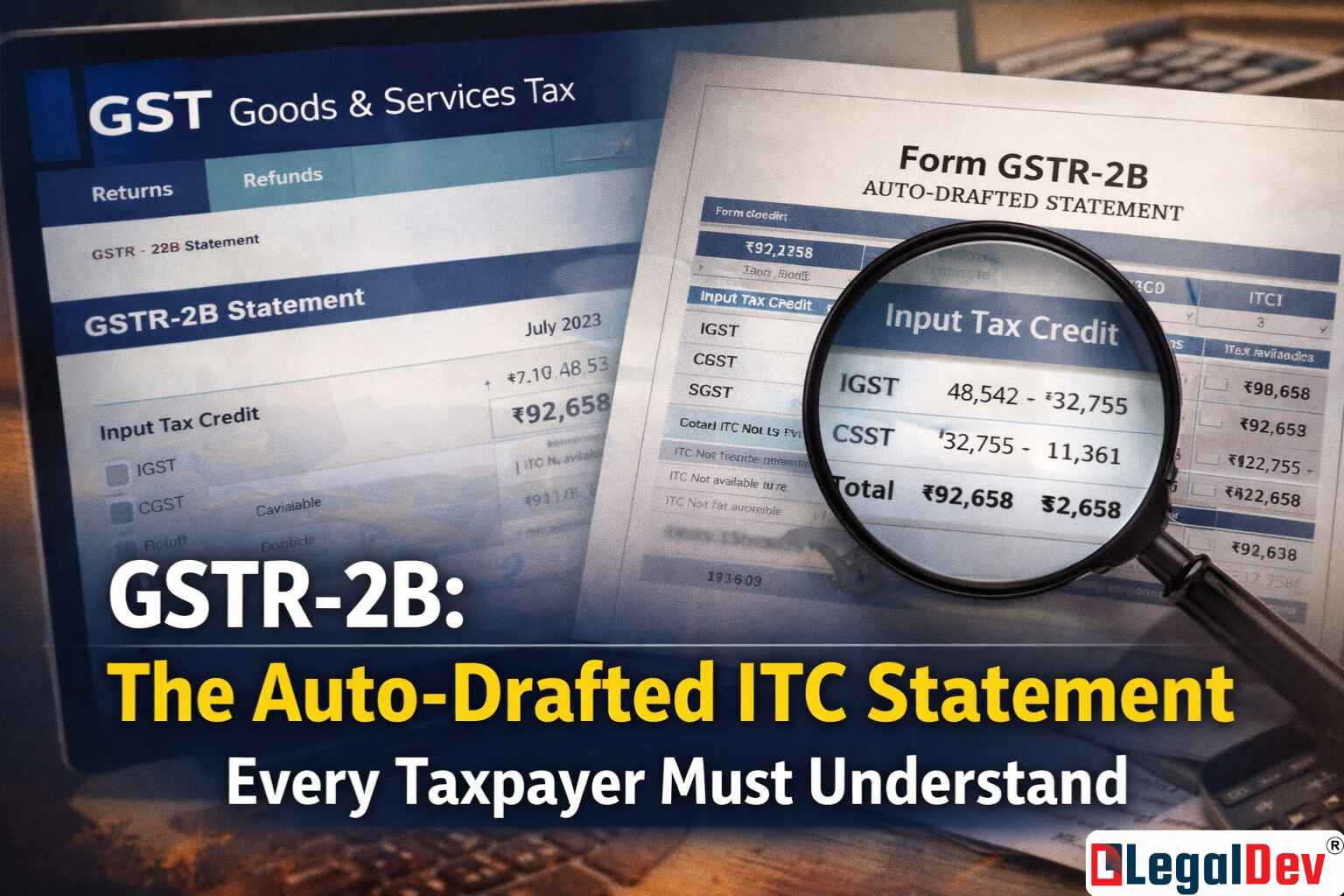
GSTR-2B is a static, auto-drafted monthly statement on the GST portal that tells every registered taxpayer exactly how much input tax credit (ITC) they're entitled to claim — and what they need to reverse. Rolled out from August 2020 onwards, it's available to all regular taxpayers, including those under the QRMP scheme. Since the Invoice Management System (IMS) became the primary filter for ITC postings, understanding GSTR-2B has become even more important for getting your GSTR-3B right.
Key things to know before you dive in:
-
The new IMS now sits between supplier uploads and your GSTR-2B credit.
-
Once a supplier issues a credit note, you must reverse the ITC immediately — the supplier gets no relief until your end reflects the change.
-
Budget 2026 formally requires that your ITC reversals match the supplier's credit note value in real time.
-
GSTR-2B creates a two-way channel between the GST portal and your business records — it's not just a report, it's a compliance tool.
What GSTR-2B Actually Is — And Why It Replaced GSTR-2A
Think of GSTR-2B as a monthly snapshot that freezes your ITC picture on a specific date. Unlike GSTR-2A — which updates every time a supplier files or amends something — GSTR-2B locks in the data and stays constant for that period. Whether you access it today or three months later, the numbers won't shift.
Every recipient taxpayer gets one. Normal taxpayers, SEZ units, and casual taxpayers can all generate it. The source data comes from GSTR-1, GSTR-5, and GSTR-6 filed by your suppliers.
The statement covers ITC from the filing date of the previous month's GSTR-1 (M-1) right up to the filing date of the current month's GSTR-1 (M). For example, the GSTR-2B for March 2026 pulls in documents filed between 12 a.m. on 14th March 2026 and 11:59 p.m. on 13th April 2026. That statement becomes available on 14th April 2026.
Why GSTR-2B Changed How Businesses Track ITC
Before GSTR-2B existed, reconciling ITC was genuinely messy. GSTR-2A kept moving — a supplier could file or amend a return weeks later and change your numbers. Businesses couldn't lock in a definitive ITC figure for any month without chasing a moving target.
GSTR-2B solved that. The data inside it is formatted to reconcile cleanly against your purchase books. It lets you:
-
Spot when the same invoice has been used to claim credit twice
-
Check whether reversals have been done correctly in GSTR-3B
-
Confirm that reverse charge obligations have been met (including imported services)
-
See exactly which GSTR-3B table each invoice or debit note should flow into
No guesswork. Each section comes with built-in advisories telling you what action to take.
GSTR-2B Availability Timeline: August 2020 to Today
GSTR-2B went live from August 2020. In those early months — up through January 2021 — taxpayers could pull the statement once a month, on the 12th of the following month. So the August 2020 GSTR-2B was accessible from 12th September 2020.
From January 2021 onwards, the generation date shifted to the 14th of every month. Today, GSTR-2B for February 2026 would be available from 14th March 2026. Check the "View Advisory" tab on the GST portal for the exact timelines whenever they change — the government updates it there first.
How to Access GSTR-2B on the GST Portal — Step by Step
Accessing GSTR-2B doesn't take long once you know where to look. Here's how:
Step 1 — Log in. Use your registered credentials on the GST portal.
Step 2 — Go to the Returns Dashboard. Find it in the main navigation after logging in.
Step 3 — Choose the tax period. Select the relevant month and financial year.
Step 4 — Pick your action on the GSTR-2B tile. Two options are available: View or Download.
Choosing Download: When your statement has more than 1,000 documents across all tables, the View option won't work well. Use the Download page instead. From there, click "Generate JSON File to Download" to use it with the Offline Matching Tool, or "Generate Excel File to Download" to get the data directly on your system.
Choosing View: Works smoothly when total line items are under 1,000. The GSTR-2B screen that opens has two tabs:
Summary tab — split into two parts:
-
Part A (ITC Available): Shows the credit value you can claim (from Table 3) and any credit that must be reversed.
-
Part B (ITC Not Available): Lists credits that can't be claimed, broken into ineligible ITC and ITC reversals (Table 4).
Click the hyperlinked text for B2B invoices, B2B debit notes, and their amendments to see document-level details.
All Tables tab — lets you sort ITC by table type: B2B, B2BA, B2B CDNR, B2B CDNRA, ISD, ISDA, IMPG, and IMPGSEZ. You can filter by supplier or document. One exception: the IMPG table (import of goods from overseas on bill of entry) shows document details only — there's no supplier-wise breakdown available there.
What's Inside GSTR-2B: Tables, Advisories, and ITC Flags
The statement covers credit from purchases made through regular taxpayers and non-resident taxable persons. It also captures ITC distributed by an Input Service Distributor (ISD).
At a high level, here's what GSTR-2B contains:
-
A summary for each section showing both available and unavailable ITC
-
Section-wise advisories that spell out what action you need to take
-
Document-by-document details — invoices, credit notes, debit notes, and their amendments
-
Cut-off dates and generation advisories
-
Import of goods data (bill of entry) and imports from SEZ units or developers, available from August 2020 onwards
How ITC is categorised inside the form:
ITC Available:
-
Part A covers inward supplies from registered persons, ISD distributions, reverse charge inward supplies, and goods imports — broken into four sub-parts.
-
Part B (ITC Reversal) has an "Others" section covering credit notes and their amendments.
ITC Not Available:
-
Part A covers ineligible invoices and CDNs from registered persons, ISD credits, and reverse charge supplies — split into three sub-parts.
-
Part B handles credit note details and amendments under the "Others" heading.
One detail worth knowing: amendment tables in GSTR-2B only show the differential tax amount (amended minus original). The document details section, though, shows the fully revised version with reference to the original document.
ITC gets flagged as "not available" in three situations:
-
The time limit for claiming credit on that invoice or debit note has lapsed under Section 16(4) of the CGST Act — whichever comes first between 30th September of the following financial year or the annual return filing date.
-
The supplier and place of supply are in the same state, but you (the recipient) are registered in a different state.
-
You're simply not eligible to claim credit on that particular supply.
Key features of the GSTR-2B interface:
-
PDF download option for the summary statement
-
Section-wise or complete ITC download, available instantly
-
Text search across all generated records
-
Columns can be hidden or shown based on what you need
-
For statements with over 1,000 records, an advanced search and full download option kicks in
-
You'll get an email or SMS when your GSTR-2B has been generated for the month
GSTR-2A vs GSTR-2B: The Static vs Dynamic Split Explained
These two statements draw from overlapping sources but behave very differently. Here's how they compare:
|
Parameter
|
GSTR-2A
|
GSTR-2B
|
|
Type
|
Progressive auto-drafted
|
Static auto-drafted
|
|
Nature
|
Dynamic — updates as suppliers file
|
Static — locked once generated
|
|
Frequency
|
Monthly
|
Monthly
|
|
Source
|
GSTR-1/IFF, GSTR-5, GSTR-6, GSTR-7, GSTR-8, ICES
|
GSTR-1/IFF, GSTR-5, GSTR-6, ICES
|
|
ITC advisory
|
No advisory included
|
Section-wise advisory on eligibility and action
|
|
When entries appear
|
GSTR-1: saved/filed/submitted; GSTR-6: submitted; GSTR-7 & 8: filed
|
GSTR-1, GSTR-5, GSTR-6: filed only
|
|
Cut-off date
|
Not applicable (dynamic)
|
11th/13th of the succeeding month; generated on the 14th
|
|
Max rows viewable without download
|
500
|
1,000
|
Note: The Invoice Furnishing Facility (IFF) lets quarterly GSTR-1 filers upload supply invoices on a monthly basis, allowing recipients to claim ITC continuously without waiting for the quarterly filing.
For GSTR-3B preparation from August 2020 onwards, GSTR-2B is the document to rely on — not GSTR-2A.
How to Reconcile GSTR-2B With Your Purchase Register (And Avoid 24% Interest)
If you skip reconciliation and accidentally claim ITC you weren't entitled to, you'll pay it back with 24% annual interest. That's not a theoretical risk — it's a real penalty that shows up in scrutiny notices. Getting the matching right before filing is far better than correcting it later.
Here's what the reconciliation process needs to confirm:
-
The same supply hasn't had ITC claimed twice
-
All required reversals are reflected in GSTR-3B as per GST rules
-
Tax on reverse charge supplies has been paid to the government
-
You're only claiming credit for tax that's actually been paid to the supplier
-
Every purchase invoice you're claiming in GSTR-3B appears in GSTR-2B, as required under Section 16 of the CGST Act
Until 31st December 2021, taxpayers could provisionally claim 5% above their available GSTR-2B credit under CGST Rule 36(4). That option was removed from 1st January 2022 via Central Tax Notification No. 40/2021 (dated 29th December 2021) and No. 39/2021 (dated 21st December 2021). Today, your GSTR-3B ITC claim must match what GSTR-2B shows — no provisional buffer.
Two more things to watch: first, don't let a large mismatch build up between GSTR-2B and GSTR-3B — repeated, unexplained gaps can trigger GST registration cancellation. Second, ITC for a financial year must be claimed before the earlier of: the due date for filing GSTR-3B for September of the following year, or the annual return filing date.
How to actually do the matching: The GST portal's Offline Matching Tool is designed exactly for this. Upload your purchase register in the exact format the portal specifies — any format deviation will throw an error and stop the process. Match each entry across these six parameters: GSTIN, document type, document number, document date, total taxable value, and total tax amount (IGST + CGST + SGST + CESS combined, verified head-by-head).
When invoices appear in your purchase register but not in GSTR-2B, contact the supplier immediately. They'll need to include those documents in their next GSTR-1 filing. Start this reconciliation from the 14th of the month after the tax period — the earlier you begin, the more time you have to chase suppliers before the next filing deadline.
Why mismatches happen in the first place:
The most common reason is a timing gap — the supplier records an invoice in a different month than when you've booked it. Credit notes or debit notes issued after you've already filed also slip through. Occasionally, suppliers amend their GSTR-1 in a later period, especially when their sales data came from an e-invoicing system that fed in slightly different values. It's worth knowing that not every mismatch has a clean explanation right away — some take a few weeks of supplier communication to resolve.
Matching GSTR-2B against your purchase books matters more than matching it against GSTR-3B. From late 2020, GSTR-3B started getting auto-populated from GSTR-1 and GSTR-2B, so GSTR-3B mismatches are less common. The real gap, when one exists, almost always lives between GSTR-2B and the purchase register.
Once you've taken values from GSTR-2B, don't also pull them from GSTR-2A. The two statements can show different numbers for the same period, and mixing them creates confusion that's hard to unravel later.
Questions Taxpayers Ask About GSTR-2B
Why does GSTR-2B show different ITC than what my supplier says they filed?
GSTR-2B only picks up documents that your supplier has actually filed — not just saved or submitted. If your supplier saved their GSTR-1 draft without filing it, or filed it after the cut-off date for that period, the invoices won't show up in your GSTR-2B for that month. They'll appear in the next month's statement instead. Always ask your supplier to confirm both the filing status and the date — a "submitted" return isn't the same as a "filed" one on the GST portal.
Can I claim ITC that's missing from GSTR-2B even if I physically have the invoice?
Not directly. Under the current GST framework, ITC claims in GSTR-3B need to be backed by entries in GSTR-2B as per Section 16(2)(aa) of the CGST Act. If an invoice is absent from GSTR-2B, the right move is to contact your supplier and have them file or amend their GSTR-1 to include it. Once they do, it'll appear in the next GSTR-2B generation. Don't try to claim it in the meantime — that creates a mismatch the department can flag.
What happens if I don't reconcile GSTR-2B before filing GSTR-3B?
Filing GSTR-3B with ITC that doesn't match your GSTR-2B creates a discrepancy that the GST system can automatically detect. Minor gaps can attract notices asking you to explain the difference. Larger or repeated mismatches can lead to ITC disallowance, demand notices with 24% annual interest, and in extreme cases, GST registration cancellation. Even if your figures feel correct, reconciling before filing takes a few hours and saves far more trouble down the line.
Is GSTR-2B available for quarterly filers under the QRMP scheme?
Yes — GSTR-2B is generated monthly for all normal taxpayers, including those who file GSTR-1 quarterly under the QRMP scheme. For months when QRMP filers use the Invoice Furnishing Facility (IFF) to upload invoices, those entries are also reflected in the recipient's GSTR-2B. The quarterly GSTR-1 filing still feeds into the relevant month's statement based on the cut-off dates.
How long does GSTR-2B take to generate after the 14th?
GSTR-2B is typically generated on the 14th of the month following the tax period — for example, the statement for March 2026 is available from 14th April 2026. The portal usually makes it accessible the same day, though during peak filing periods the portal can be slower. If it's not showing up by the afternoon of the 14th, check under the "View Advisory" section of your returns dashboard for any delay notifications. You'll also get an email or SMS alert when generation is complete.